
Create your account
Register with an email and password or with Google.
Creating an account takes a few minutes and immediately starts a guided onboarding flow. You need access to the email address you register with, because Applivo confirms new accounts with a one-time code.
Register with email
- Open the Register page and enter your full name, email address and a password.
- Submit the form. Applivo creates your account in an unverified state and sends a one-time code to the email address you entered.
- Enter the code on the verification step to mark the account verified.
- You are signed in and continue to onboarding, where you fill in your profile and preferences.
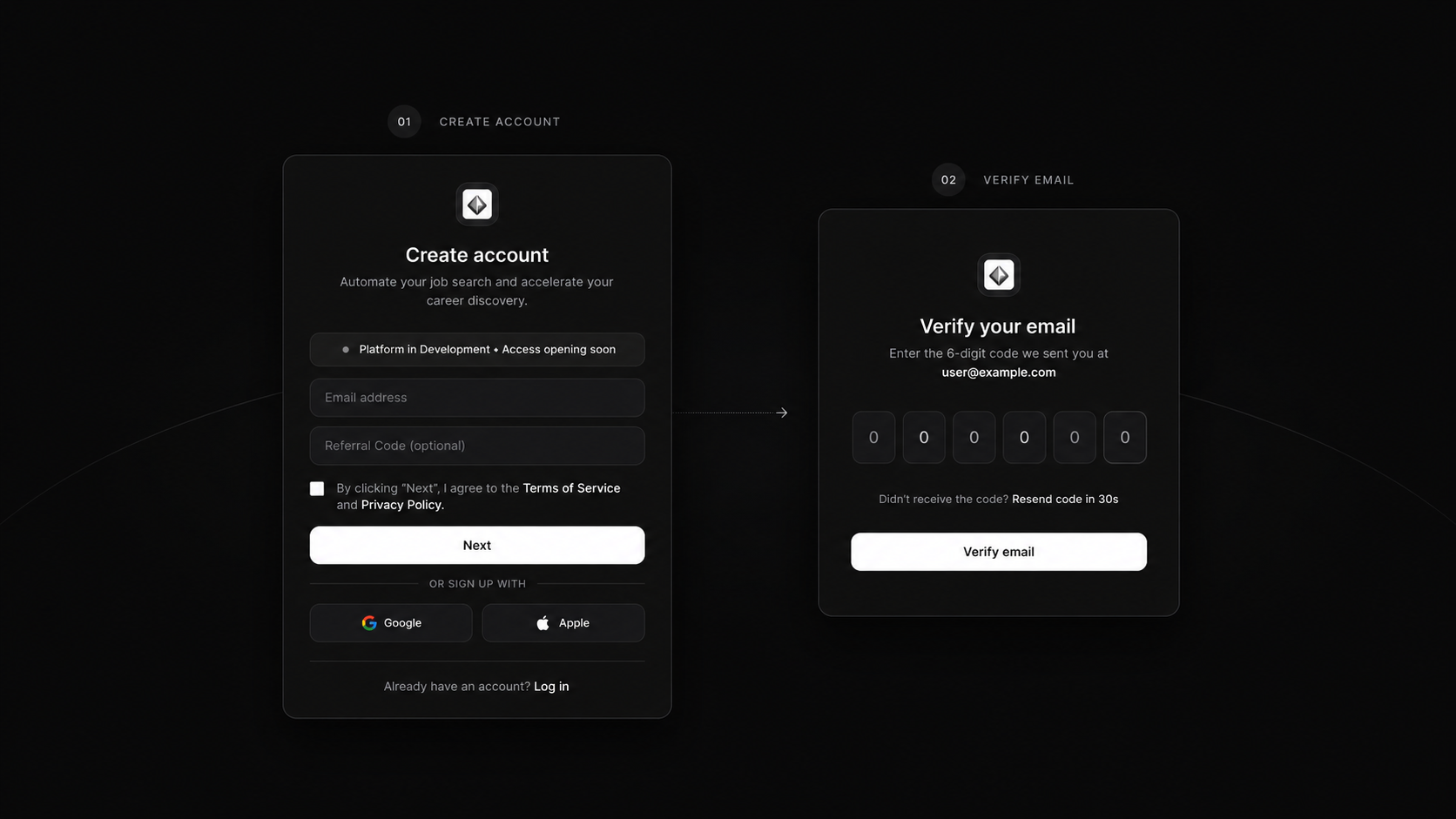
Register with Google
If Google sign-in is configured for your deployment, the Google button creates or signs in the account in one step, and no email code is required because the provider has already verified the address.
Expected result
- A verified account you can sign into again from the Login page.
- You are taken into onboarding to complete your profile.
- No subscription is required to create an account, but the extension needs an eligible plan later.
Common problems
| Symptom | Likely cause | What to do |
|---|---|---|
| Code email never arrives | Spam filtering, or SMTP is not configured on the server | Check spam; if you run your own deployment, confirm the SMTP variables are set. |
| Code rejected | The code expired or was mistyped | Request a fresh code and enter it promptly. |
| Email already registered | An account already exists for that address | Use Sign in or the Forgot password flow instead. |