
Sign in and account access
How login works, including the one-time code step and password recovery.
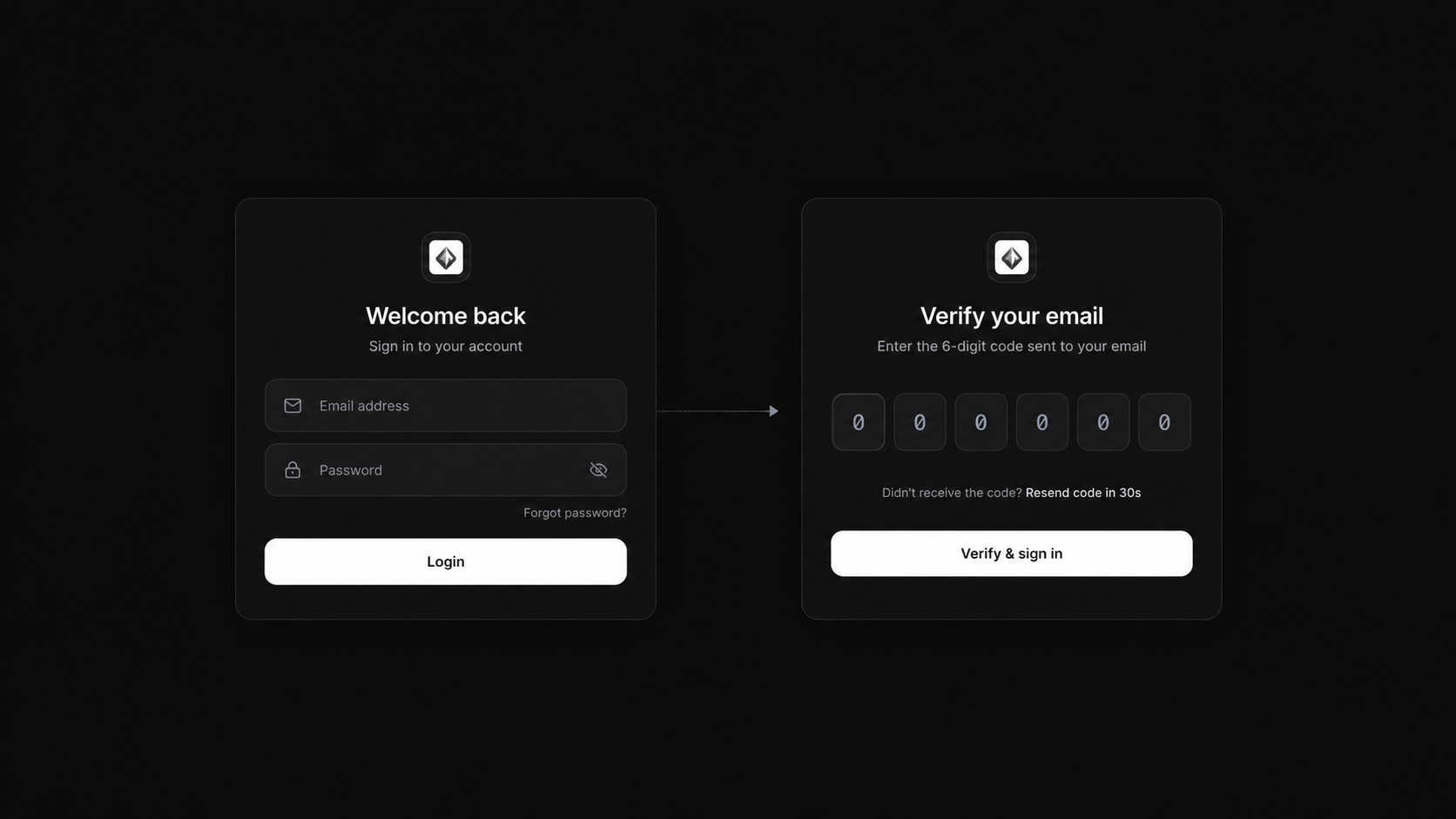
Applivo uses two factors for email/password accounts: your password and a one-time code sent to your email. Google accounts skip the code step because Google has already verified the address.
Sign in with email and password
- Open the Login page and enter your email and password.
- If the credentials are correct, Applivo sends a one-time code to your email.
- Enter the code to complete sign-in and reach the dashboard.
Sessions
A successful sign-in issues a bearer token that the website stores in the browser and sends with every API call. Your active sessions are listed under Settings → Security, where you can terminate sessions you no longer recognise. See Security and privacy.
Forgot your password
- Choose Forgot password on the Login page.
- Enter your email. Applivo records a time-limited password reset token.
- Open the reset link and set a new password on the /reset-password page.
- Sign in again with the new password.
Signing out
Use Logout in the account menu at the top right of the app, or the logout icon at the bottom of the sidebar.
Common problems
| Symptom | Likely cause | What to do |
|---|---|---|
| Login always fails locally | Your local database does not contain that user, or you are pointed at a different environment | Register locally, then read the one-time code from the backend log. |
| 401 after being idle | Your token expired | Sign in again; the token lifetime is defined by the server configuration. |
| Google button missing | Google sign-in is not configured for this deployment | Use email and password instead. |